Remote support
Download RustDesk so I can help you on your computer. When it is running, read me the ID and one-time password it shows. I can only see your screen while you keep RustDesk open and have given me that password.
Windows
Download for Windows Windows on ARM- Open the downloaded file. If Windows shows "Windows protected your PC", click More info and then Run anyway.
- RustDesk starts straight away; you don't have to install it.
- Read me the ID and one-time password.
This download is already set up for my server: RustDesk reads its settings from the file name, so please don't rename it.
Mac
Download for Mac with Apple chip (M1 or newer) Mac with Intel processorNot sure? Open the Apple menu (top left) → About This Mac. "Chip: Apple M…" means Apple chip; "Processor: Intel" means Intel.
- Open the downloaded file and drag RustDesk into the Applications folder. Then open RustDesk from Applications.
- Click this button to load my server settings: Set up RustDesk
If nothing happens, enter the settings by hand (see "Enter the settings by hand" below). - macOS asks for permission. Open System Settings → Privacy & Security and switch RustDesk on under Screen & System Audio Recording and Accessibility. Then quit and reopen RustDesk.
- Read me the ID and one-time password.
Linux
Intel/AMD (x86_64): .deb (Ubuntu, Debian) .rpm (Fedora) AppImage Flatpak
ARM (aarch64): .deb .rpm AppImage Flatpak
- Install and open RustDesk, then enter the settings by hand (see below).
- On Wayland, RustDesk asks you to allow screen sharing each time I connect. Choose your screen and click Share.
Android
Download for Android- Open the downloaded file and allow installing apps from your browser if Android asks.
- In RustDesk, go to Settings → ID/Relay server and tap the scan icon, then scan this code from another screen. Or enter the settings by hand.
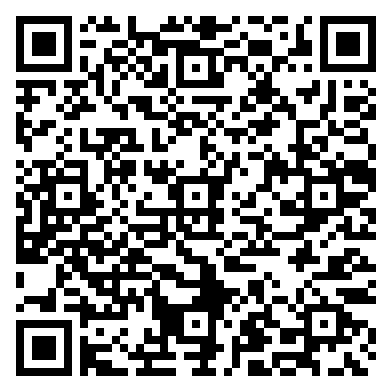
- On the Share screen tab, tap Start service and allow the permissions Android asks for.
- Read me the ID and one-time password.
iPhone and iPad
Apple doesn't allow other people to see or control an iPhone or iPad through RustDesk, so I can't help you on it this way. If you need help on a computer, open this page on that computer.
Enter the settings by hand
In RustDesk, open Settings → Network (on Windows and Mac you may first need to click Unlock network settings), then ID/Relay server. Fill in these two fields and leave the others empty:
Import as one line instead
On the ID/Relay server screen, copy this line and use the paste/import button.